Using a reference image
Apply the color or composition of an existing image to influence the next AI image you create.
Add a reference image
To begin, click Add image next to the prompt bar in the AI Generator and select Add reference image to choose from:
- Generated images
- My licensed images
- My uploads
Once you have your reference image chosen, select Color or Composition and use the slider to determine how much influence the reference will have and add a prompt to generate your image.
Note: If you use an unlicensed Getty Images' image as reference for an AI‑generated image, you will need to license the original visual before you can download the generated image.
Choose color or composition
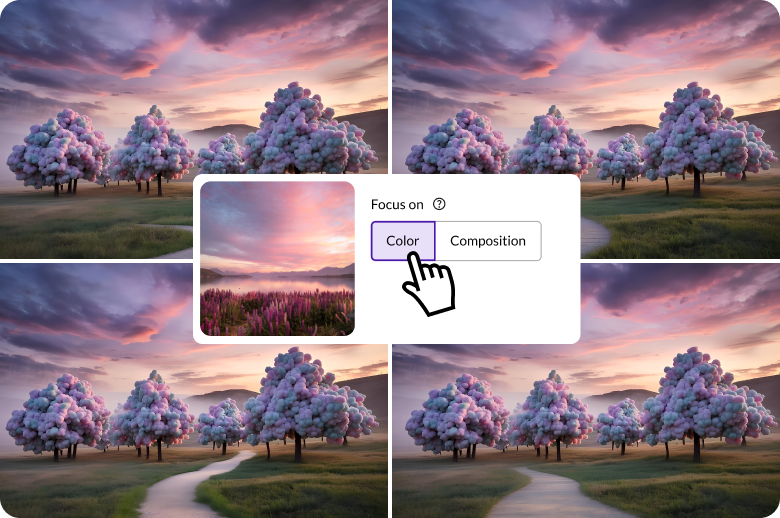
Color
Color creates an image with a similar color palette and tone as the reference.
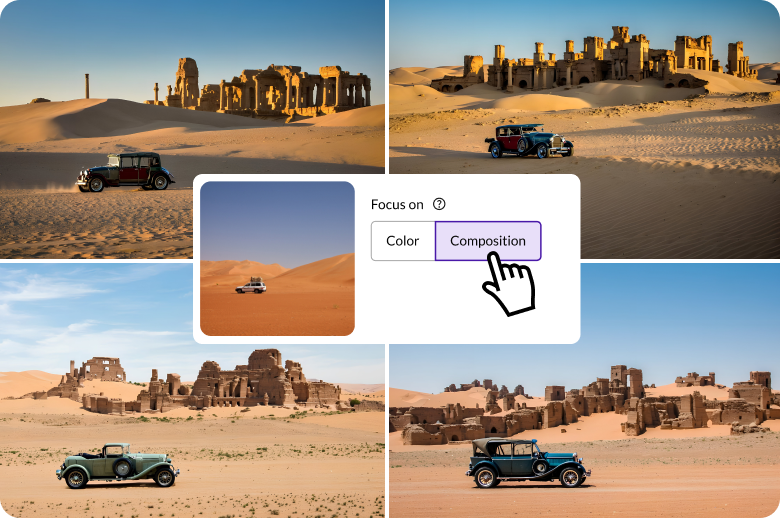
Composition
Composition produces an AI image with the subject matter patterned after the reference (size, shape, relationship to other elements in the image), allowing you explore different elements while maintaining an image's essential structure.
Recommended for you

Expand images to fit different platforms, make more room for copy, or adjust the positioning of the visual’s main subject.
Learn how easy it is to download and license your commercially safe AI‑generated and modified images.
Transform ideas into original visuals in seconds—just use the text prompt and filters to turn your vision into reality.