Extending an image
Create the sizes or the space you need
Begin by accessing the Extend tool through the image details page or Modify with AI menu. Once the control panel is open, you can use the "Freeform" tool to drag the image edges to a new size or simply choose a new aspect ratio from the options provided.
The Zoom out slider allows you to manipulate the size of the original image within the frame, and you can click and drag the image within the new size to reposition the original main subject.
A prompt is optional if there is a specific element or look you want included. Then click Extend image to generate 4 new versions, each with an automatically generated background that blends seamlessly with the original visual. Choose the version that best matches your vision.
Note: You can also use the same process to create different sizes for any AI images you’ve generated.
Recommended for you
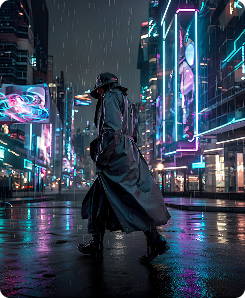
Transform ideas into original visuals in seconds—just describe what you want to create to turn your vision into reality.

Adding or replacing image details
Turn almost there into just right—use powerful AI tools to modify and refine pre‑shot or visuals you’ve generated on‑site.
Learn how easy it is to download and license your commercially safe AI‑generated and modified images that include flexible usage rights.